DailyLeft
Monthly budget and allowance
Set a budget and see what you can spend today, worked out from the money and days you have left
01
What you can spend today
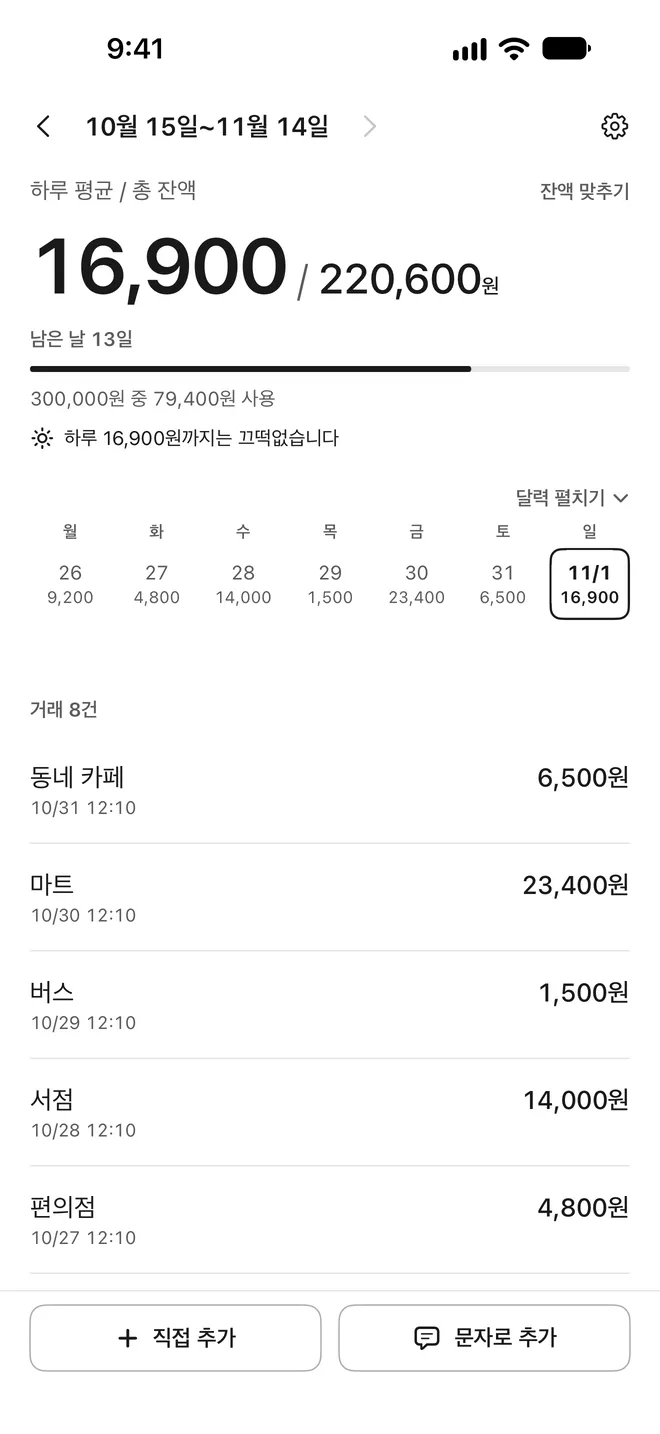
Enter a monthly budget, and the money left is divided by the days left to show what you can spend each day. When you spend, the daily amount is worked out again. One line below tells you whether your pace is comfortable or tight. With a daily budget, what is left for today shows in large numbers.
- Monthly and daily budgets
- A daily amount based on the days left
- Start with one amount
02
Choose the days that count
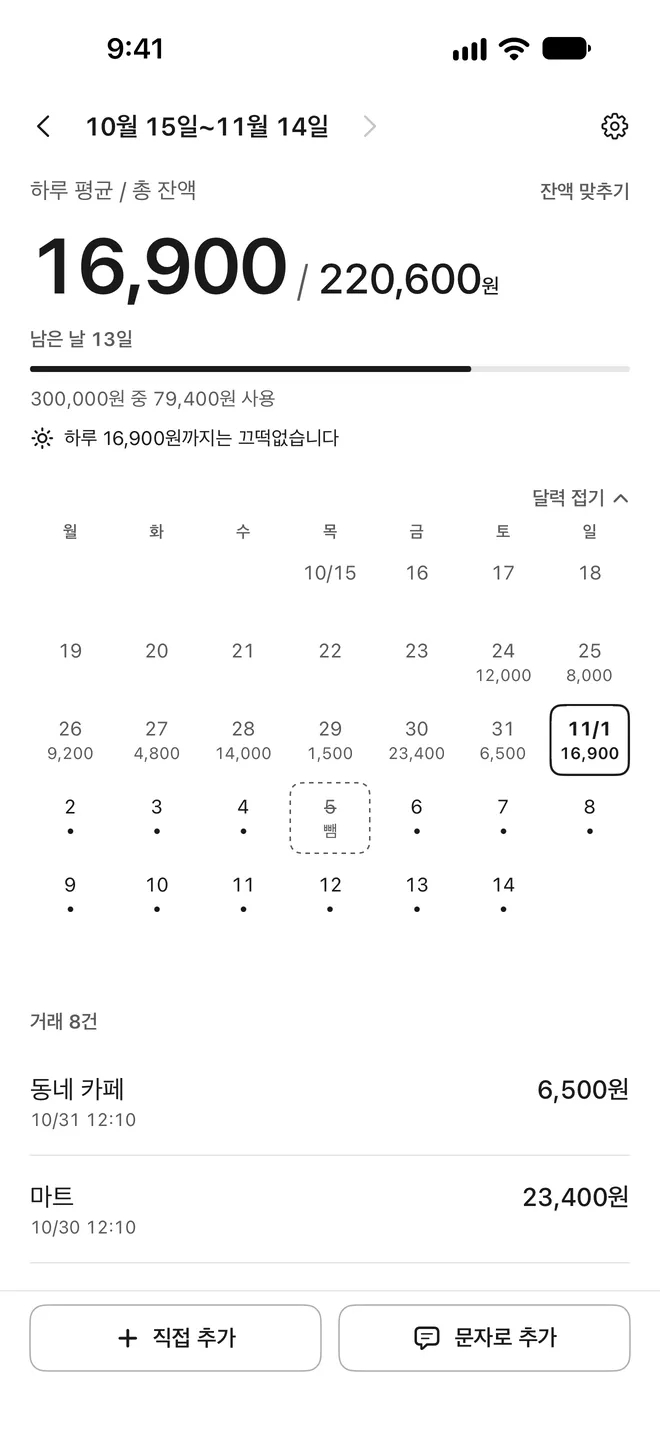
Every day counts by default. Turn on 평일만 세기 (Count weekdays only) to leave out weekends and Korean public holidays. To leave out a day you won't spend, tap it in the calendar. With a monthly budget, the daily amount is then divided again over the days left. Past days in the calendar show what you spent.
- Count weekdays only
- Leaving days out in the calendar
- What you spent each day
03
Set it up for your budget
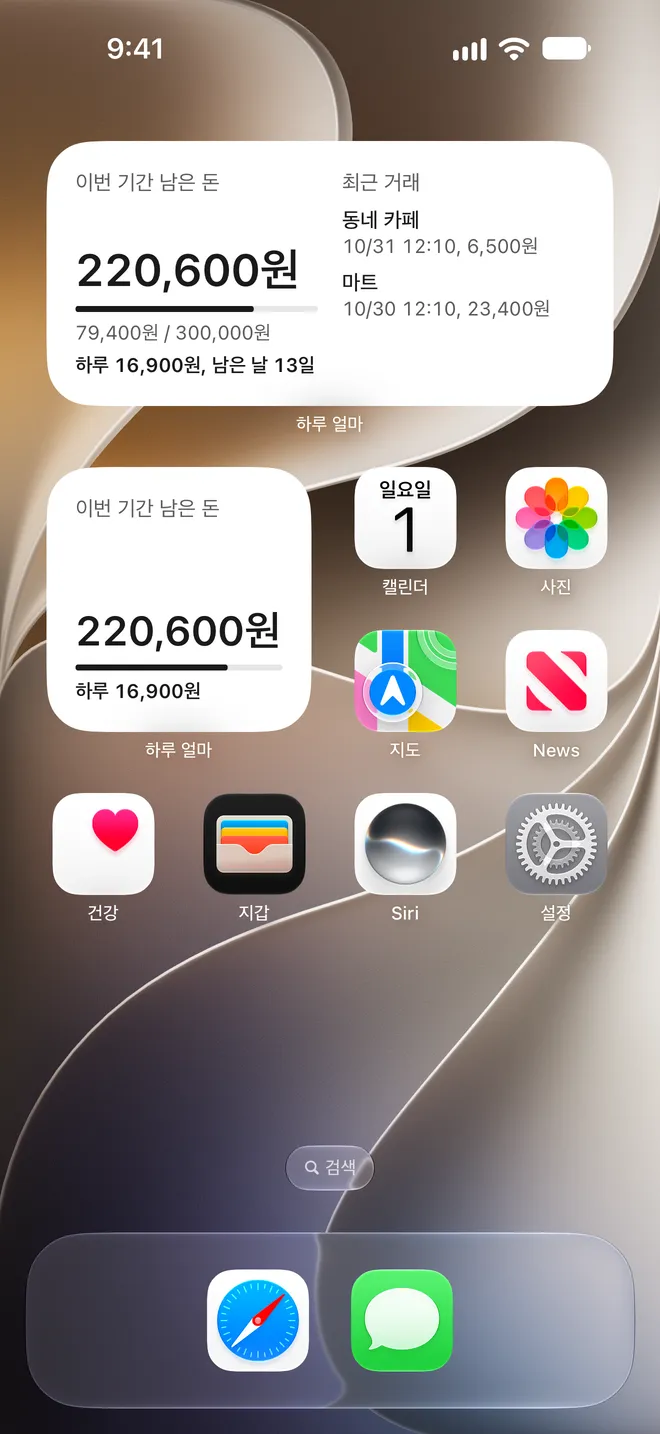
By default it helps you stay within budget. If the money disappears when the period ends, as with welfare points or a grant, turn on 남으면 사라짐 (Expires if unspent), and it tells you to use it all in time. Choose the day your budget starts, from the 1st to the 28th. The money left also shows in Home Screen and Lock Screen widgets.
- An Expires if unspent setting
- Period start day, 1st to 28th
- Home Screen and Lock Screen widgets
04
Recording payments
If card payments reach you by text message, you can set up a Shortcuts automation to record them without opening the app. If they come through a card app or KakaoTalk, paste the notice or enter the amount yourself. Enter a card's last 4 digits to record only that card's messages, or leave them empty to record payment messages from every card.
- Shortcuts automation
- Pasting a payment notice
- Adding by hand
05
When the balance is off
If the record and your real balance differ, tap the big number and enter the real amount. One 잔액 조정 (Balance adjustment) line records the difference, and your original transactions stay as they are.
- No account
- Portrait and landscape
- Light and dark
Support
Questions and contact details are on the support page.