
Codematic
Promo giveaways, one at a time
Keep the offer codes and app promo codes you give away in one place, with a record of who got each one
01
Three ways to add codes
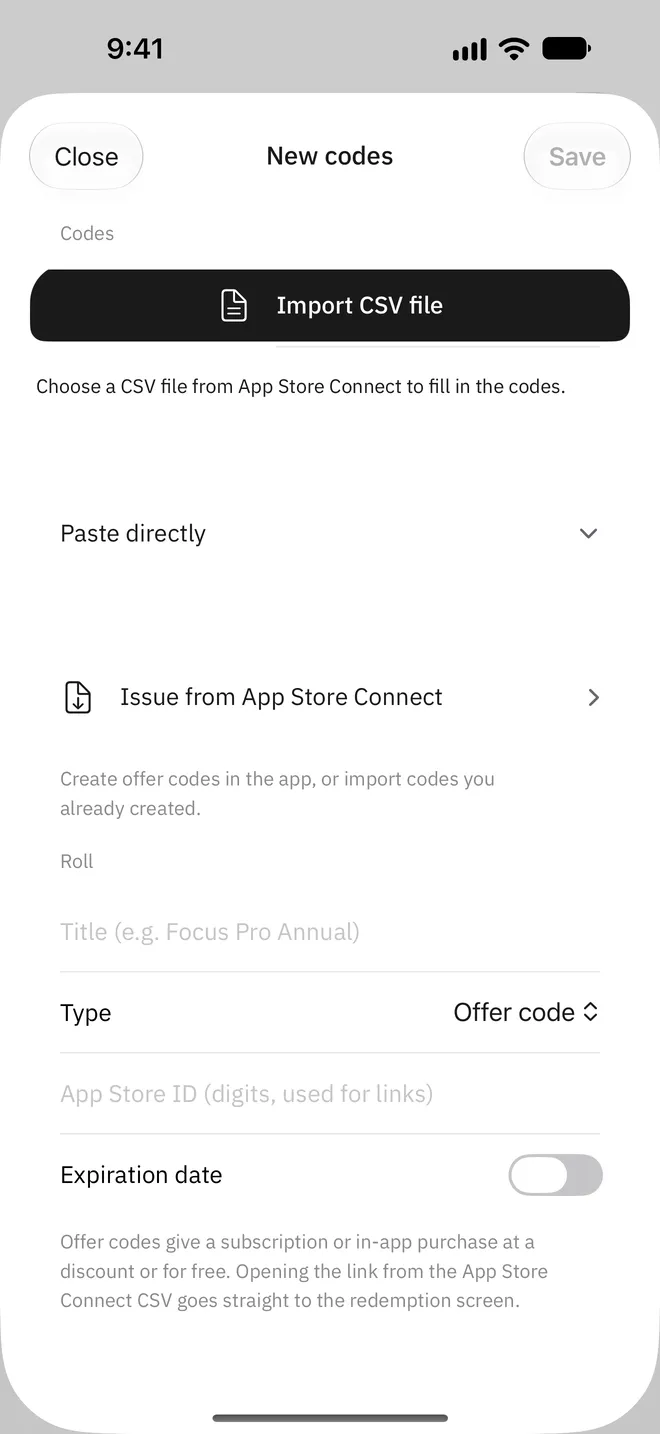
Import the offer code CSV you download from App Store Connect as it is. Codematic reads the code type and which app the codes are for from the file. Without a file, paste the codes in, and any you have already added are skipped. With an API key added, issue codes in the app and they go straight in.
- Import CSV file
- Paste directly
- Duplicates skipped
02
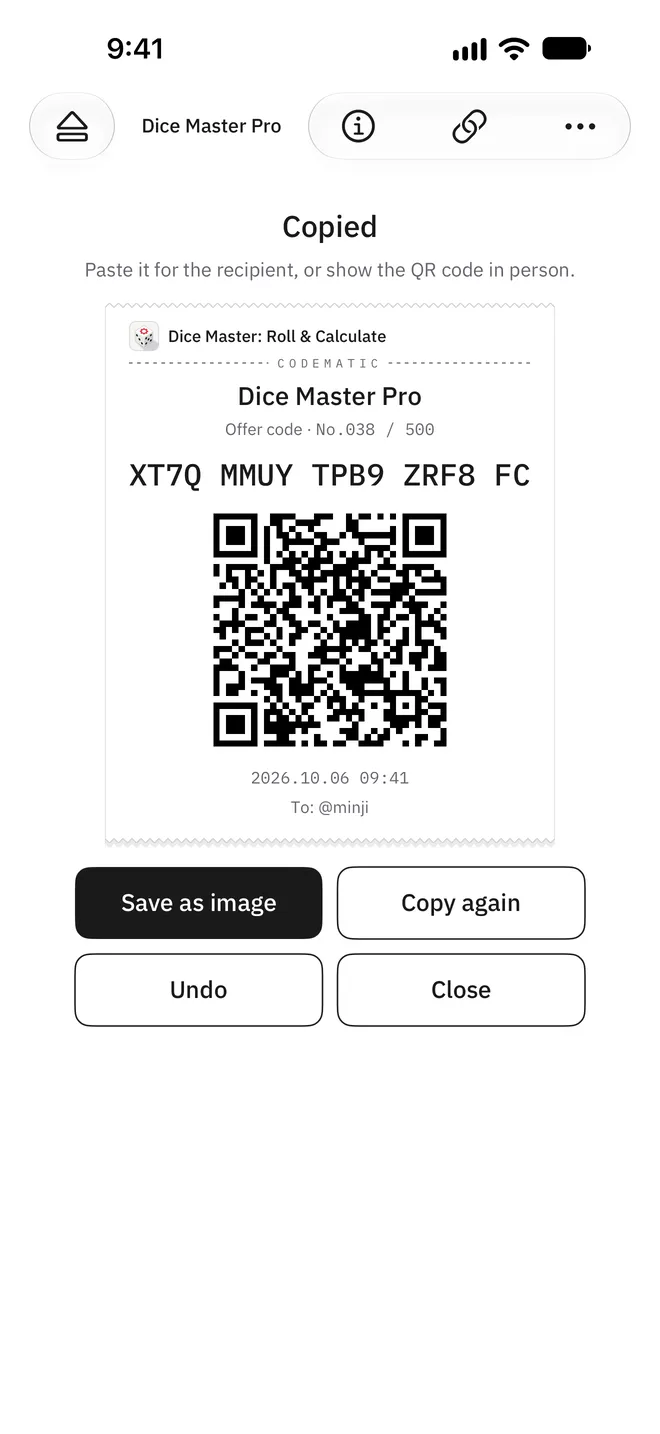
Tap Issue and the next code is copied
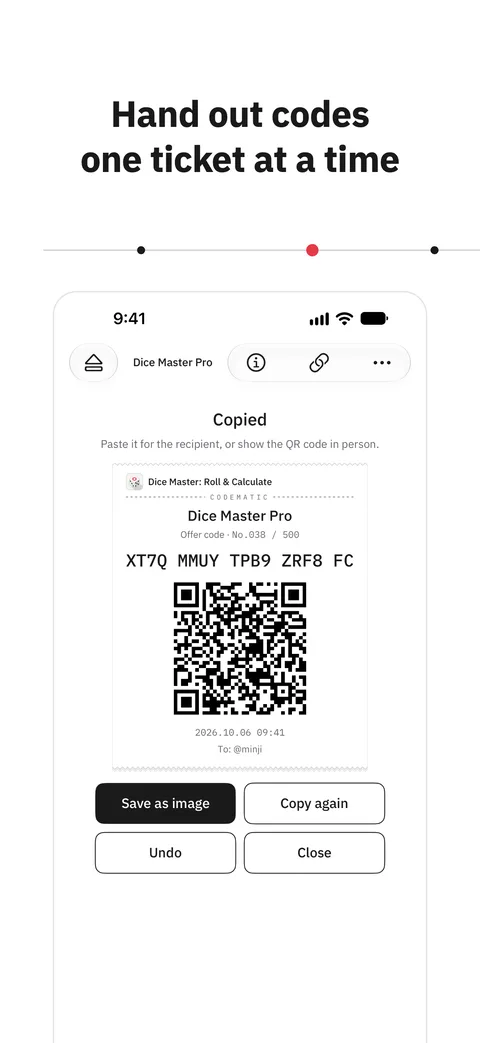
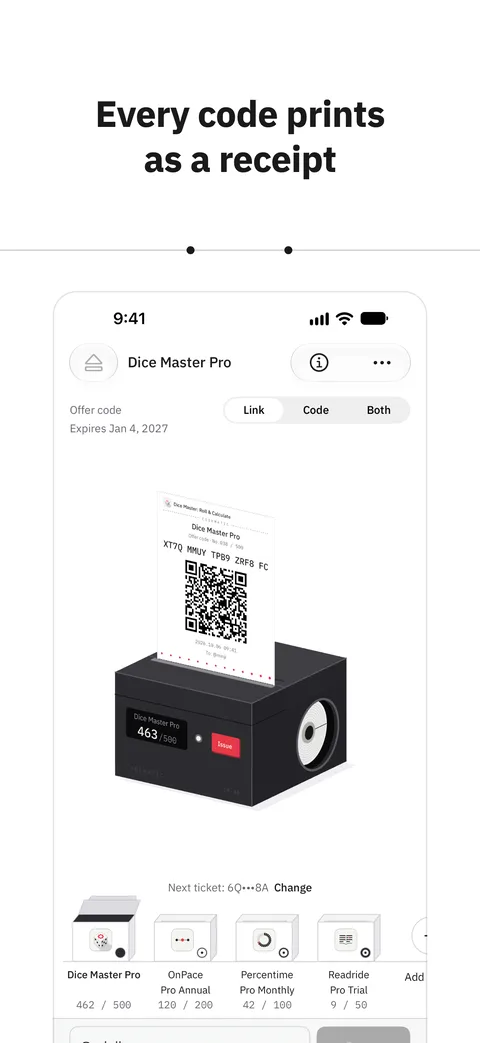
The copied code is marked as handed out. Each roll can copy the redeem link, the code, or both. In person, show the card with its QR code, or save it as an image and send it.
- Code or redeem link copied
- A QR card you can save as an image
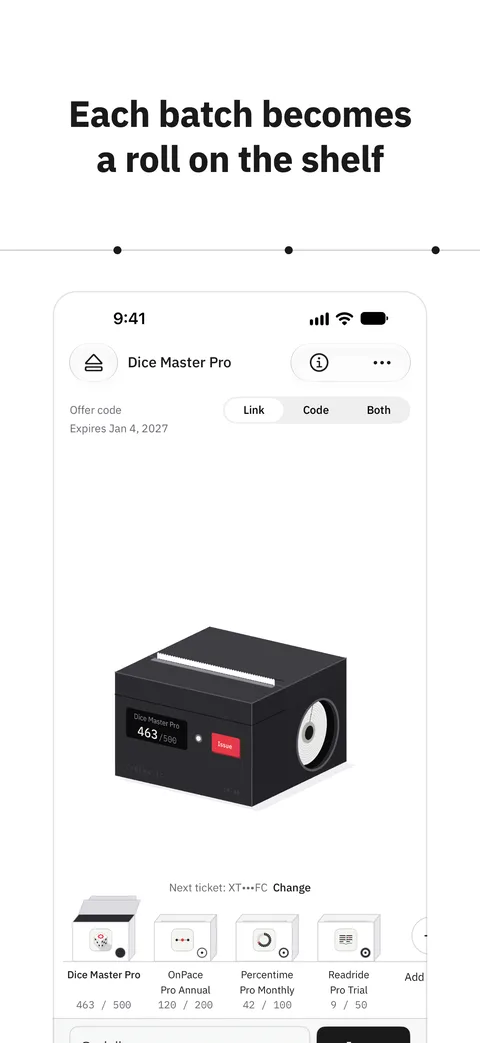
- Codes left in each roll
03
Who got which code
Add the recipient's name when you hand a code out, and each code keeps who got it and when. Undo a code handed out by mistake, and export the record as CSV. Rolls and codes are stored in iCloud and show up on the iPhone and iPad signed in to the same Apple Account.
- Handed out list and Undo
- Export as CSV
- iCloud sync
04
Issue from App Store Connect
Add your App Store Connect API key to create offers and issue one-time use codes in the app. Issued codes become a roll right away. Without a key, CSV import and pasting work the same.
- One-time use code batches
- Existing batches imported
- New offers
Support
Questions and contact details are on the support page.