
SnapLine
Fresh lines on shots you took
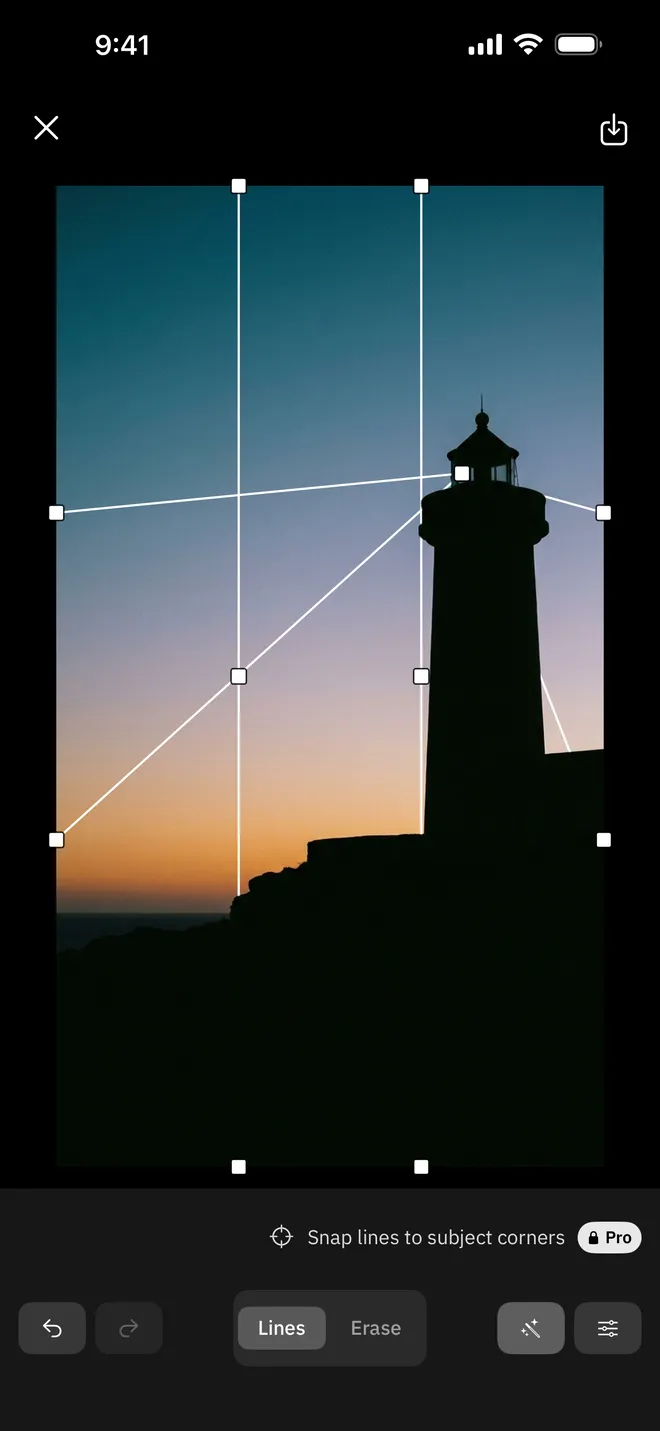
Lay the camera grid over your photo and arrange it with an eye for composition.
01
The grid moves into the photo
A camera grid floats on the viewfinder and vanishes the moment the shutter fires. SnapLine puts that grid back on a photo you already took, starting from the rule of thirds. Drag the middle point of a line and it bends while both ends stay on the edge of the photo. Drag an edge point and the line tilts. Drag the small tick on a line to add another bend.
- Bend and tilt any line
- Extra bend points, sharp or smooth
- Add line and Delete line buttons
- EraseRemoves a line where you rub
- RestoreBrings erased lines back
- Auto maskClears lines over the subject at once
ZoomUp to 8×
Brush1 to 60 pt
02
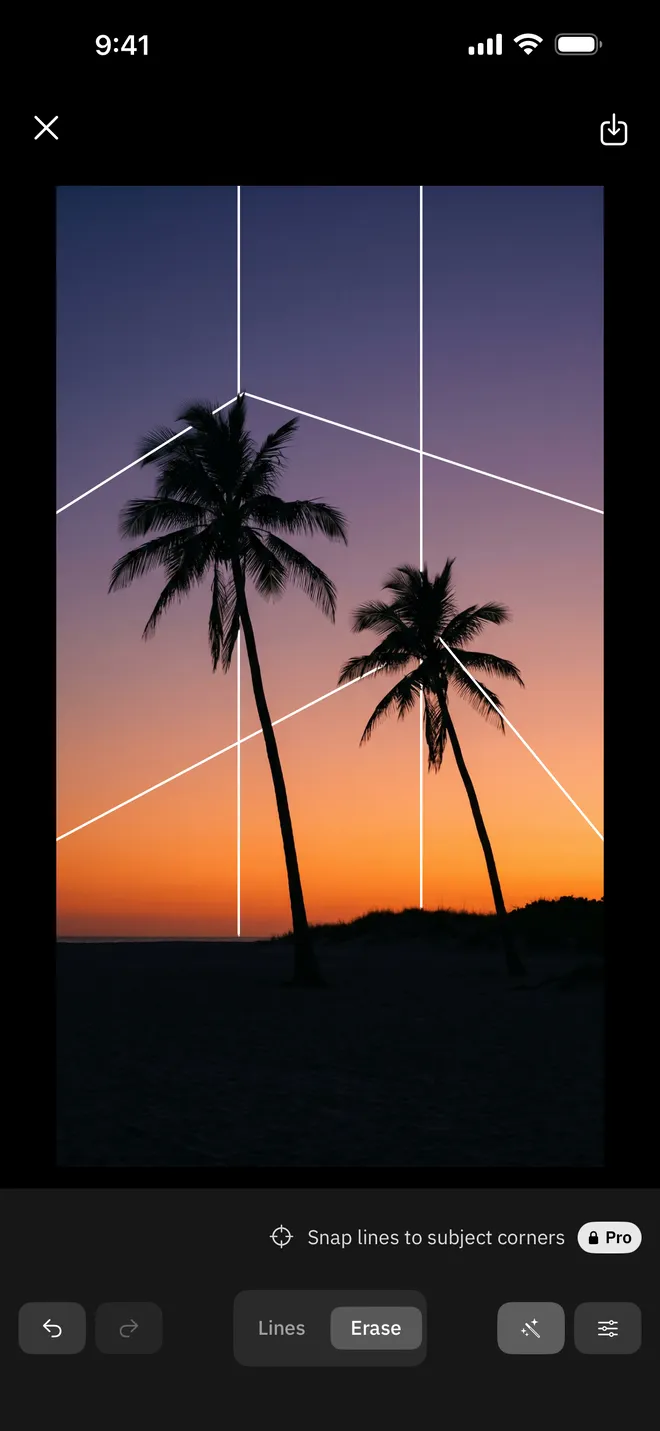
The line passes behind the subject
Switch to Erase and rub over the line where it crosses the subject. The line breaks there and the grid drops behind, into the picture. Tap Auto mask and the app finds the subject and clears the lines over it in one step. Switch to Restore and the line comes back wherever you rub.
- Auto mask for one-tap erasing
- Zoom up to 8× with a loupe
- Press and hold to see the result
03
Full-size exports
Export draws the lines onto your original photo at its full resolution. Save the JPEG to Photos or share it right away. Saved photos carry a small SnapLine mark in the bottom-right corner, and SnapLine Pro saves without it.
- Pixel size shown on the export screen
- JPEG quality 95
- Save to Photos or Share
04
Pick a photo and go
Nothing to sign up for. Choose one photo and the grid lands on it. The photo you were editing stays on the home screen, and a tap opens it again.
- No account
- Works offline
SnapLine Pro
Choose how your lines look,
and save without the mark
- Saving without the mark
- Dashed, double and glow line styles
- Line colors beyond white and black
- Snapping lines to subject corners
Support
Questions and contact details are on the support page.